virtualbox 환경 구성
다운로드
VirtualBox 7.0+
https://www.virtualbox.org/wiki/Downloads
Downloads – Oracle VirtualBox
This VirtualBox Extension Pack Personal Use and Educational License governs your access to and use of the VirtualBox Extension Pack. It does not apply to the VirtualBox base package and/or its source code, which are licensed under version 3 of the GNU Gene
www.virtualbox.org
VirtualBox Extension Pack
https://www.virtualbox.org/wiki/Downloads
Downloads – Oracle VirtualBox
This VirtualBox Extension Pack Personal Use and Educational License governs your access to and use of the VirtualBox Extension Pack. It does not apply to the VirtualBox base package and/or its source code, which are licensed under version 3 of the GNU Gene
www.virtualbox.org
Windows Server 2022 ISO
https://www.microsoft.com/ko-kr/evalcenter/download-windows-server-2022
Windows Server 2022 | Microsoft Evaluation Center
Windows Server 2022는 고급 다중 레이어 보안, Azure와 함께 하이브리드 기능, 유연한 응용 프로그램 플랫폼을 도입합니다.
www.microsoft.com
Ubuntu 22.04 Server ISO
https://releases.ubuntu.com/jammy/
Ubuntu 22.04.5 LTS (Jammy Jellyfish)
Select an image Ubuntu is distributed on three types of images described below. Desktop image The desktop image allows you to try Ubuntu without changing your computer at all, and at your option to install it permanently later. This type of image is what m
releases.ubuntu.com
Get Ubuntu Server | Download | Ubuntu
Get Ubuntu Server one of three ways; by using Multipass on your desktop, using MAAS to provision machines in your data centre or installing it directly on a server.
ubuntu.com
Kali Linux ISO
https://www.kali.org/get-kali/
Get Kali | Kali Linux
Home of Kali Linux, an Advanced Penetration Testing Linux distribution used for Penetration Testing, Ethical Hacking and network security assessments.
www.kali.org
Phase 1: 호스트 PC 요구사항 확인
1. 하드웨어 요구사항
최소 사양
| 항목 | 최소 | 권장 |
| CPU | 4코어 (VT-x/AMD-V 지원) | 8코어 이상 |
| RAM | 16GB | 32GB 이상 |
| 디스크 | 200GB SSD 여유 공간 | 300GB SSD |
| 네트워크 | 유선 LAN | 유선 LAN |
가상화 지원 확인
systeminfo | findstr /i "Hyper-V"
현재 PC 대부분은 가상화를 지원한다
2. BIOS 가상화 활성화
Intel CPU (VT-x)
BIOS 진입 → Advanced → CPU Configuration → Intel Virtualization Technology → Enabled
AMD CPU (AMD-V/SVM)
BIOS 진입 → Advanced → CPU Configuration → SVM Mode → Enabled
3. Hyper-V 비활성화
VirtualBox랑 Hyper-V는 동시 사용시 성능 저하 발생하므로
bcdedit /set hypervisorlaunchtype off
Restart-Computer 로 재부팅
Phase 2: VirtualBox 설치
1. VirtualBox 다운로드 및 설치
https://www.virtualbox.org/wiki/Downloads
Downloads – Oracle VirtualBox
This VirtualBox Extension Pack Personal Use and Educational License governs your access to and use of the VirtualBox Extension Pack. It does not apply to the VirtualBox base package and/or its source code, which are licensed under version 3 of the GNU Gene
www.virtualbox.org
windows hosts 다운로드
2. Extension Pack 설치
위 링크에서 VirtualBox Extension Pack 다운로드하여 설치한다
3. VirtualBox 기본 설정
기본 머신 폴더: D:\VirtualBox VMs (SSD 권장)
호스트 키 조합: Right Ctrl (기본값)
업데이트 확인: 비활성화 (실습 환경 안정성)
Phase 3: 네트워크 구성
1. NAT 네트워크 생성
모든 VM이 동일한 내부 네트워크에서 통신하도록 구성한다
NAT 네트워크는 VM들끼리는 하나의 사내망처럼 묶어주면서,
인터넷은 호스트 PC를 통해 간접 접속하여 안전하게 해줌

외부 인터넷은 쓰되, 외부에서는 직접 접근 못하게 만드는 가상 사설망

VirtualBox가 가상 라우터 역할을 해서 게이트웨이를 만들어줌
VM들은 같은 대역에 묶여서 서로 자유롭게 통신함

VirtualBox -> 호스트 PC -> 외부


Bridged 안 쓰는 이유는 회사/집 공유기 DHCP와 충돌하고 IP 제어가 불가
Host-Only 안 쓰는 이유는 VM끼리는 통신되지만 인터넷이 안된다
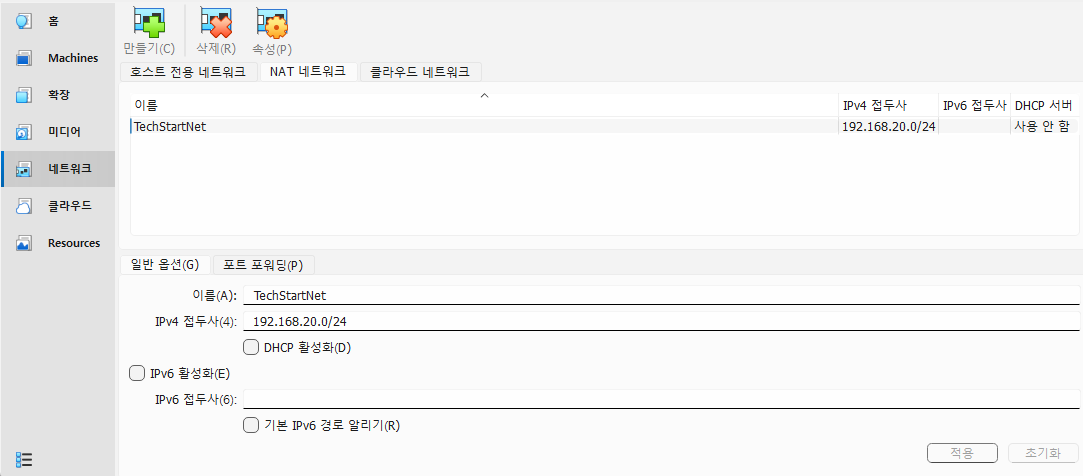
DHCP 활성화 체크하기!!
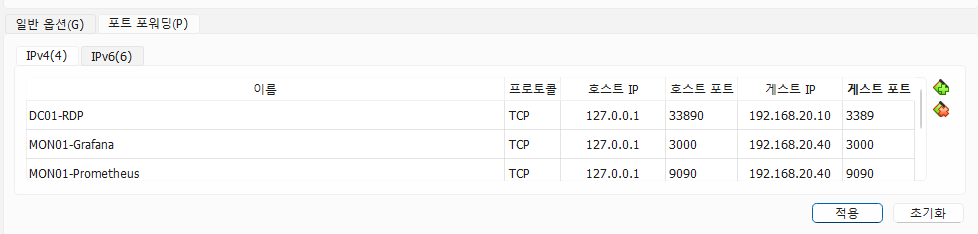

3. 네트워크 구성도
┌─────────────────────────────────────────────────────────────────────────┐
│                        TechStartNet (192.168.20.0/24)                   │
│                              NAT Network                                 │
├─────────────────────────────────────────────────────────────────────────┤
│                                                                          │
│  ┌──────────────┐  ┌──────────────┐  ┌──────────────┐                  │
│  │    DC01      │  │    WEB01     │  │    WEB02     │                  │
│  │ 192.168.20.10│  │ 192.168.20.30│  │ 192.168.20.31│                  │
│  │ Win 2022    │  │ Win 2022     │  │ Win 2022     │                  │
│  │ AD/DNS/DHCP │  │ IIS          │  │ IIS          │                  │
│  └──────────────┘  └──────────────┘  └──────────────┘                  │
│                                                                          │
│  ┌──────────────┐  ┌──────────────┐  ┌──────────────┐                  │
│  │   LINUX01    │  │    MON01     │  │  WEBLINUX01  │                  │
│  │ 192.168.20.20│  │ 192.168.20.40│  │ 192.168.20.51│                  │
│  │ Ubuntu 22.04 │  │ Ubuntu 22.04 │  │ Ubuntu 22.04 │                  │
│  │ BIND9/HAProxy│  │ Prometheus   │  │ Nginx/Node.js│                  │
│  └──────────────┘  └──────────────┘  └──────────────┘                  │
│                                                                          │
│  ┌──────────────┐  ┌──────────────┐                                     │
│  │  WEBLINUX02  │  │   KALI01     │                                     │
│  │ 192.168.20.52│  │192.168.20.99│                                     │
│  │ Ubuntu 22.04 │  │ Kali Linux   │                                     │
│  │ Nginx/Node.js│  │ 침투테스트   │                                     │
│  └──────────────┘  └──────────────┘                                     │
│                                                                          │
│                         ↓ NAT ↓                                          │
│                    [인터넷 접속]                                         │
│                                                                          │
└─────────────────────────────────────────────────────────────────────────┘
Phase 4: VM 생성
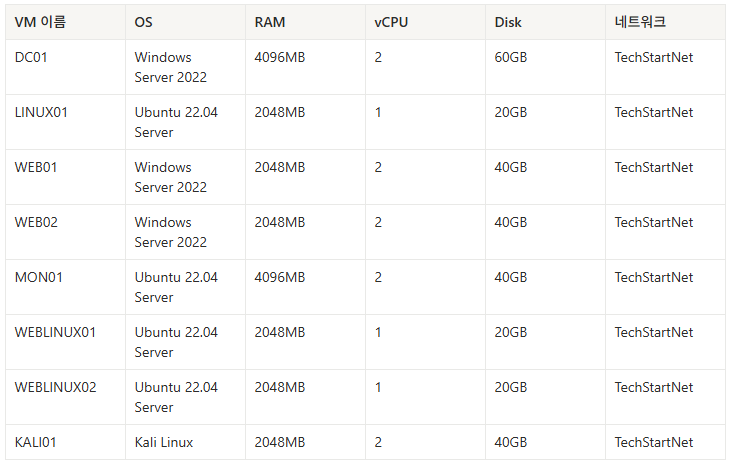
1. VM 사양 요약
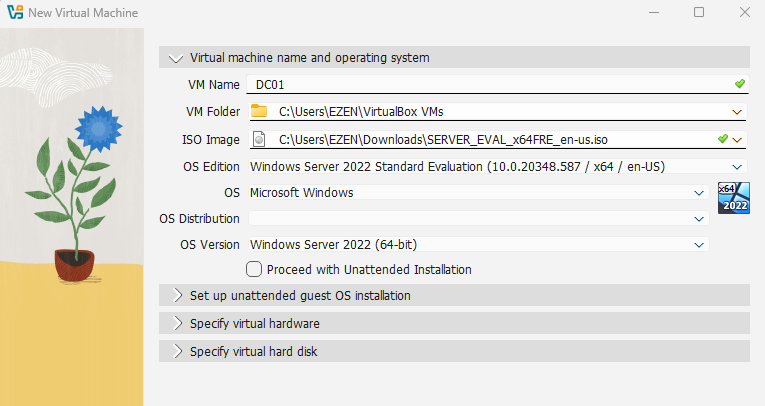
2. DC01 VM 생성 - Windows Server 2022
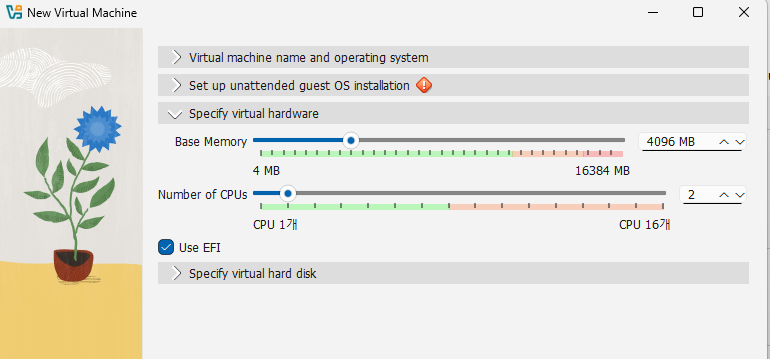
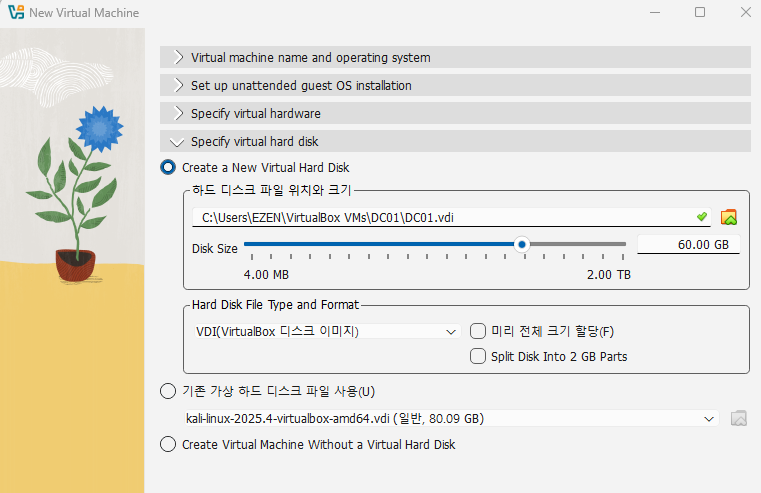
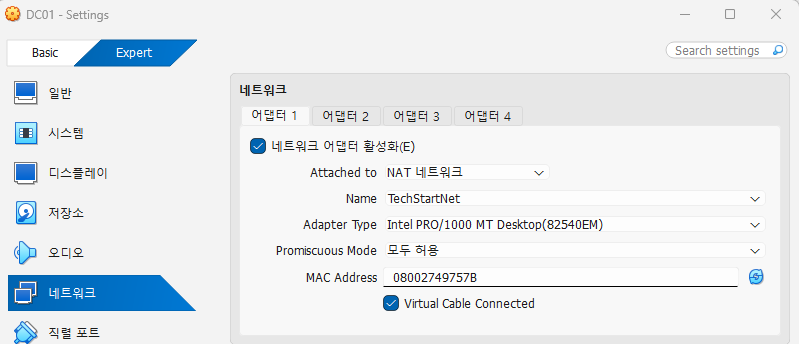
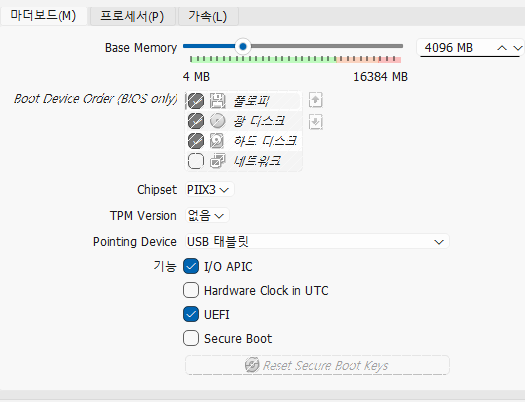
설정 > 시스템 > 마더보드
3. LINUX01 VM 생성 (Ubuntu 22.04)
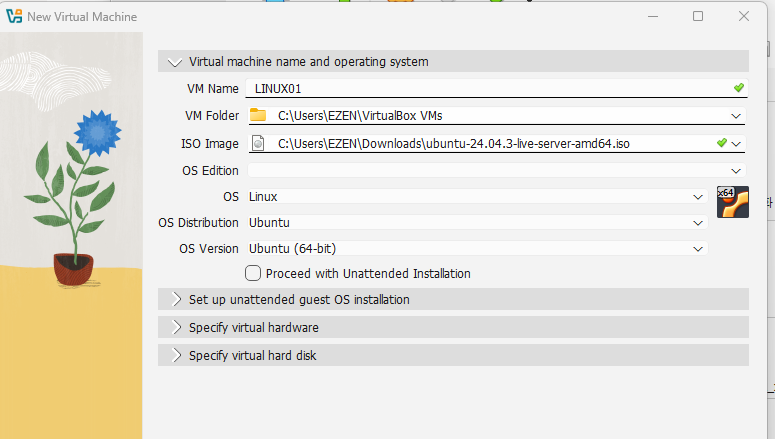
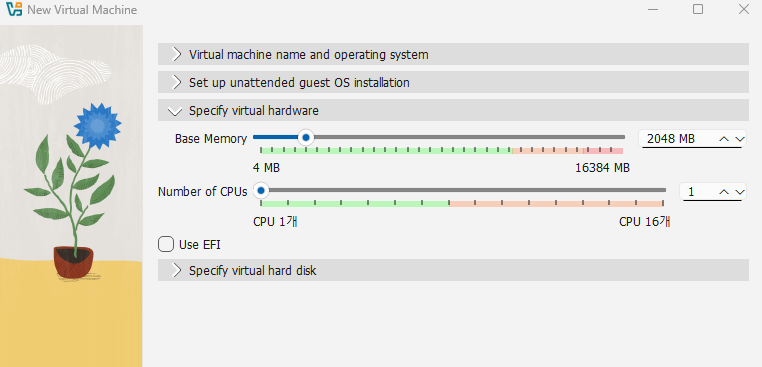
디스크 크기는 20GB로
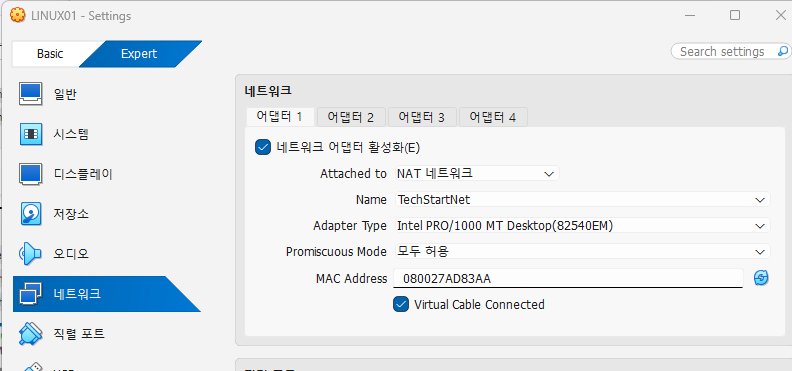
4. 나머지 VM 생성
위와 동일한 방식으로 나머지 VM 생성
Windows Server 2022
RAM: 2048MB vCPU:2 Disk:40GB
WEB01
WEB02
Ubuntu 22.04
RAM: 4096MB vCPU:2 Disk:40GB
MON01
RAM: 2048MB vCPU:1 Disk:20GB
WEBLINUX01 WEBLINUX02
Kali Linux
RAM: 2048MB vCPU:2 Disk:40GB
KALI01
-> 리소스 부족시 Desktop environment 체크 해제하고 CLI 모드시에 램 1GB로 운영 가능
5. VM 생성 완료 확인

Phase 5: Windows Server 2022 설치
1. DC01 OS 설치

두번째 Windows Server 2022 Standard Evaluation (Desktop Experience) 선택

NEXT 눌러서 설치 진행
관리자 암호 설정: P@ssw0rd!
첫 로그인: 입력> Ctrl+Alt+Delete 로 암호 입력
2. DC01 초기 설정
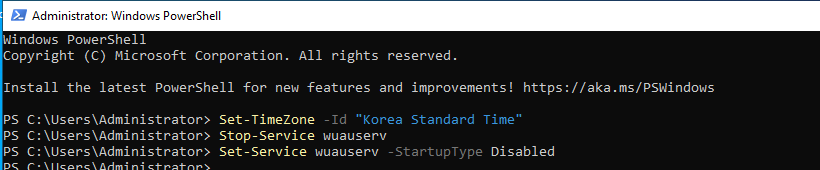
시간대 설정 Set-TimeZone -Id "Korea Standard Time"
업데이트로 인한 재부팅 방지 Stop-Service wuauserv
Set-Service wuauserv -StartupType Disabled
VM 메뉴 -> 장치 -> 게스트 확장 CD 이미지 삽입 누르고
탐색기에서 D 드라이브 열어서 VBoxWindowsAdditions.exe 실행
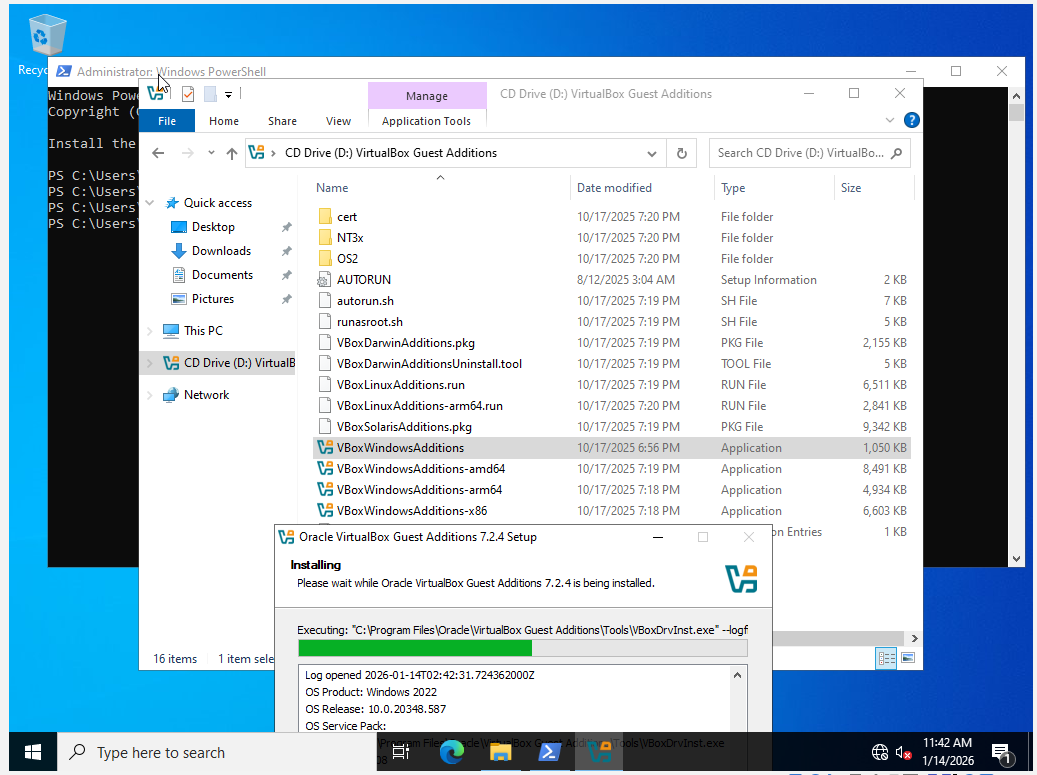
reboot 후 해상도 조정 및 클립보드 공유 가능
완료 후 머신 > 스냅샷 찍기
3. WEB01, WEB02 OS 설치
DC01과 동일한 방식으로 설치
Phase 6: Ubuntu 22.04 Server 설치
- 기본값 진행
네트워크 설정은
엔터로 edit
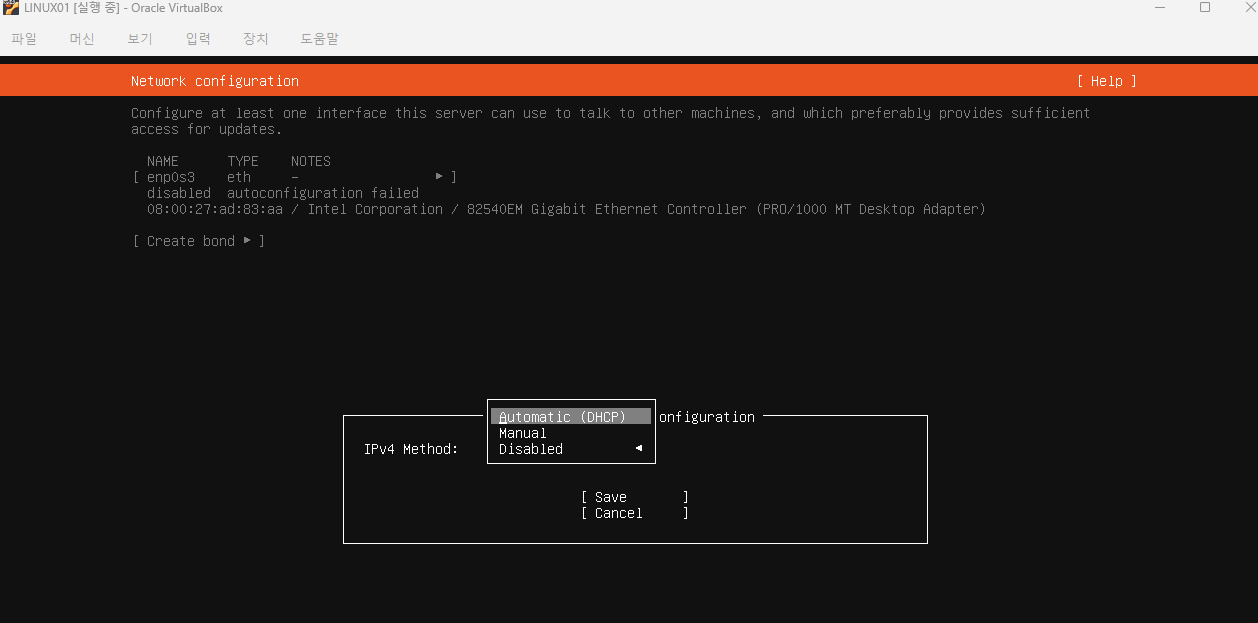
프록시 설정 비워두기
미러 주소 기본값
스토리지 설정
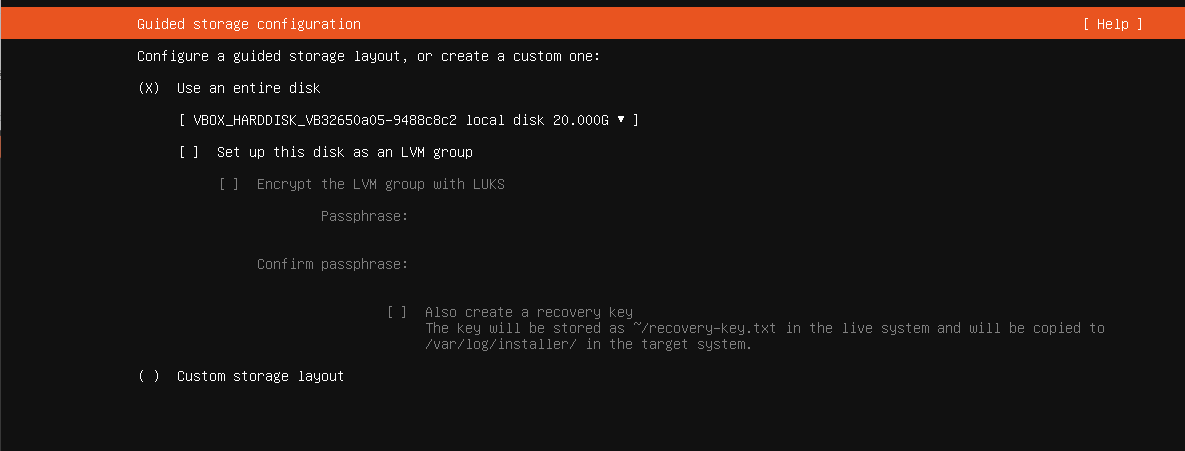
프로필 설정

SSH 설정
Install openSSH server 체크하기
Import SSH identity는 No
Featured Server Snaps
아무것도 선택 x
설치 후 reboot now
"Please remove the installation medium" 메시지 시: VM 메뉴 → 장치 → 광학 드라이브 → 디스크 꺼내기 → Enter
2. LINUX01 초기 설정
로그인 sysadmin P@ssw0rd!
DHCP 할당을 못 받아서 네트워크 설정 어댑터에 브릿지로 바꿔서 ip 할당받고
다시 nat 네트워크로 바꾸고 재진행
ip a 로 확인
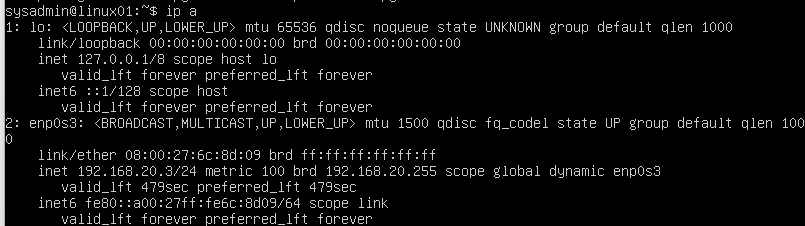
sudo apt update